

Documentation
Preferences
This dialog is used to set user preferences.
- Stand-alone: Select Window > Preferences from the menu to open this dialog.
- Eclipse plug-in: The JFormDesigner preferences are fully integrated into the Eclipse preferences dialog. Select Window > Preferences from the menu to open it and then expand the node "JFormDesigner" in the tree.
- IntelliJ IDEA plug-in: IntelliJ IDEA uses the term "Settings" instead of "Preferences". The JFormDesigner preferences are fully integrated into the IntelliJ IDEA settings dialog. Select File > Settings from the menu to open it and then select the "JFormDesigner" page.
- NetBeans plug-in: NetBeans uses the term "Options" instead of "Preferences". The JFormDesigner preferences are fully integrated into the NetBeans options dialog. Select Tools > Options from the menu to open it and then select the "JFormDesigner" page.
Pages
- General
- MigLayout
- FormLayout (JGoodies)
- GridBagLayout
- null Layout
- Localization
- Java Code Generator
- Templates
- Layout Managers
- Localization
- Binding
- Code Style (Stand-alone only)
- Client Properties
- Native Library Paths
- BeanInfo Search Paths
- Check for Updates
Import and export preferences
In the Preferences dialog, you can use the Import
( ) button to import
preferences from a file and the Export
(
) button to import
preferences from a file and the Export
( ) button to export
preferences to a file. This preferences file is compatible with all
JFormDesigner editions. On export, you can specify what parts of the preferences
you want export.
) button to export
preferences to a file. This preferences file is compatible with all
JFormDesigner editions. On export, you can specify what parts of the preferences
you want export.
You can also use IDE specific import/export commands:
- Eclipse plug-in: You can use the menu commands File > Import and File > Export to import and export preferences to/from Eclipse preferences files.
- IntelliJ IDEA plug-in: You can use the menu commands File > Import Settings and File > Export Settings to import and export settings to/from IntelliJ IDEA preferences files.
- NetBeans plug-in: You can use the Import and Export buttons in the Options dialog to import and export options to/from NetBeans options files.
Note: Each IDE uses its own file format for preferences. The only way to transfer preferences between the different JFormDesigner editions is to use JFormDesigner preferences files.
Restore defaults
Use the Restore Defaults
( ) button to restore the
values of the active page to its defaults.
) button to restore the
values of the active page to its defaults.
General
On this page, you can specify general options.

| Option | Description | Default |
|---|---|---|
| Animate layout changes in Design view | If enabled, changes to the layout in the Design view are done animated. | On |
| Animation speed | The speed of the animation. | default |
| Buffer Design view in video memory | If enabled, parts of the Design view are buffered in the video memory of the graphics card to improve painting speed. | On |
| Undo history size | The maximum number of steps in the undo history of a form. | 1000 |
| Form file format | The format used to persist the form. Since version 5.1, JFormDesigner supports the compact, easy-to-merge and fast-to-load persistence format JFDML. To change the persistence format of an existing form, open the form, select the "(form)" node in the Structure view and change the "Form file format" property in the Properties view. Or use the JFormDesigner command-line tool to convert the format of many forms. | JFDML |
MigLayout
On this page, you can specify MigLayout related options.

| Option | Description | Default |
|---|---|---|
| Layout constraints | The layout constraints used for new forms/containers. | hidemode 3 |
| Column constraints | The column constraints used for new columns. | fill |
| Row constraints | The row constraints used for new rows. |
FormLayout (JGoodies)
On this page, you can specify FormLayout related options.

| Option | Description | Default |
|---|---|---|
| Automatically insert/remove gap columns/rows | If enabled, JFormDesigner automatically inserts/removes gap columns/rows. | On |
| JGoodies Forms version | Required JGoodies Forms version for the created forms. | auto-detect |
| Column/row templates for new columns/rows | Here you can specify the column and row templates that should be used when new columns or rows are inserted. | |
| Column | The column template used for new columns. | default |
| Column gap | The column template used for new gap columns. | label component gap |
| Row | The row template used for new rows. | default |
| Row gap | The row template used for new gap rows. | line gap |
| Custom column/row templates | If the predefined templates does not fit to your needs, you can define your own here. Since JGoodies Forms 1.2, you can add these custom column/row templates to the global LayoutMap using the "LayoutMap Initialization Code" link. |
Custom column/row templates

| Option | Description |
|---|---|
| Display name | The display name is used within JFormDesigner whenever the template is shown in combo boxes or popup menus. |
| Identifier | The (unique) identifier is stored in form files. Choose a short string. Only letters and digits are allowed. |
| Use for | Specifies whether the template should be used for columns, rows or both. Also specifies whether it represents a gap column/row. |
| Default alignment | The default alignment of the components within a column/row. Used if the value of the component constraint properties "h align" or "v align" are set to DEFAULT. |
| Size | The width of a column or height of a row. You can use default, preferred or minimum component size. Or a constant size. It is also possible to specify a minimum and a maximum size. Note that the maximum size does not limit the column/row size if the column/row can grow (see resize behavior). |
| Resize behavior | The resize weight of the column/row. |
| Java code | Optional Java code used by the Java code generator. Useful if you have factory classes for ColumnSpecs and RowSpecs. Not available for JGoodies Forms 1.2 and later. |
GridBagLayout
On this page, you can specify GridBagLayout related options.

| Option | Description | Default |
|---|---|---|
| Default properties for new columns/rows | Here you can specify the column and row properties that should be used when new columns or rows are inserted. | |
| Column | The column properties used for new columns. | fill:0:0.0 |
| Row | The row properties used for new rows. | fill:0:0.0 |
null Layout
On this page, you can specify null layout related options.

| Option | Description | Default |
|---|---|---|
| Snap to grid | If enabled, snap to the grid specified below when moving or resizing a component in null layout. | On |
| Grid X step | The horizontal step size of the grid. | 5 |
| Grid Y step | The vertical step size of the grid. | 5 |
Localization
On this page, you can specify localization related options.

| Option | Description | Default |
|---|---|---|
| Rename resource keys when renaming components | If enabled, auto-rename resource keys when renaming components and the resource key contains the old component name. | On |
| Copy localized messages when copying components | If enabled, duplicate localized strings in all locales when copying components. | On |
| Delete localized messages when deleting components | If enabled, auto-delete localized strings, that were used by the deleted components, from all locales. | On |
| Delete localized messages when internalizing strings | If enabled, auto-delete localized strings, that were internalized, from all locales. | On |
| Delete messages only if key prefix is equal to form's key prefix | If enabled, messages will be auto-deleted only if their key prefix is equal to the key prefix of the form. | On |
| Insert new messages | Specifies where new messages will be inserted into properties files. "next to similar keys" inserts new messages next to other similar keys so that messages that belong together are automatically at the same location in the properties file. "at the end of the properties file" always appends new messages to the end of the properties file. | next to similar keys (ascending order) |
| Format used for generated keys | Format used when generating a resource key. | ${componentName} ${sep}${propertyName} |
| Separator used for generated keys | Separator used when generating a resource key. | '.' |
| Encoding for properties files | Specifies encoding used for properties files. Since Java 9, UTF-8 is used by default for reading properties files in applications. Java 8 uses ISO-8859-1. (Stand-alone only; in IDE plug-ins the encoding specified for .properties files in the IDE preferences is used) | UTF-8 if running in Java 9 or later; ISO-8859-1 if running in Java 8 |
| Template for properties files | Template used when creating new properties files. | |
| Exclude properties from externalization | Specify properties that should be excluded from externalization. Useful when using auto-externalization to ensure that some string property values stay in the Java code. If the list is focused, you can use the Insert key to add a property or the Delete key to delete selected properties. |
Java Code Generator
On this page, you can turn off the Java code generator and specify other code generation options.

| Option | Description | Default |
|---|---|---|
| Generate Java source code | If enabled, JFormDesigner generates Java source code when you save a form. | On |
| Source compatibility | Specifies the compatibility of the generated source code. Besides
generating Java 1.x compatible source code, JFormDesigner can also use
Java 5 (or later) features in the generated source code (e.g.
auto-boxing, @Override, lambda expressions, var, etc). |
Stand-alone: use Java 8 IDE plug-ins: use project setting |
| Explicit imports | If enabled, the code generator adds explicit import statements (without '*') for used classes. | Off |
| Container blocks | If enabled, the code generator puts the initialization code for each container into a block (enclosed in curly braces). | On |
| Comments | If enabled, the code generator puts a comment line above the initialization code for each component. | On |
| Set component names | If enabled, the code generator inserts java.awt.Component.setName()
statements for all components of the form. |
Off |
| Use Eclipse code formatter | If enabled, the Eclipse code formatter is used to format the generated code. (Eclipse plug-in only) | Off |
| Eclipse non-nls tags (//$NON-NLS-n$) | If enabled, the code generator appends non-nls comments to lines containing strings. These comments are used by the Eclipse IDE to denote strings that should not be externalized. | Off |
| IntelliJ IDEA non-nls tags (//NON-NLS) | If enabled, the code generator appends non-nls comments to lines containing strings. These comments are used by IntelliJ IDEA to denote strings that should not be externalized. | Off |
| NetBeans no-i18n tags (//NOI18N) | If enabled, the code generator appends non-nls comments to lines containing strings. These comments are used by the NetBeans IDE to denote strings that should not be externalized. | Off |
| Use 'this' for member variables | If enabled, the code generator inserts 'this.' before all member
variables. E.g. this.nameLabel.setText("Name:"); |
Off |
| Member variables prefix | Prefix used for component member variables. E.g. "m_". | |
| Class modifiers | Class modifiers used when generating a new class. Allowed modifiers:
public, default, abstract and final. |
public |
| Nested class modifiers | Class modifiers used when generating a new nested class. Allowed
modifiers: public, default, protected, private, abstract,
final and static. |
private |
| Variable modifiers | The default modifiers of the variables generated for components. Allowed
modifiers: public, default, protected, private, static and
transient. |
private |
| Event handler modifiers | The default modifiers used when generating event handler methods.
Allowed modifiers: public, default, protected, private, final
and static. |
private |
You can set additional options per form in the "(form)" properties.
Templates (Java Code Generator)
This page contains templates that are used by the code generator when generating a new class. See Code Templates for details about templates.
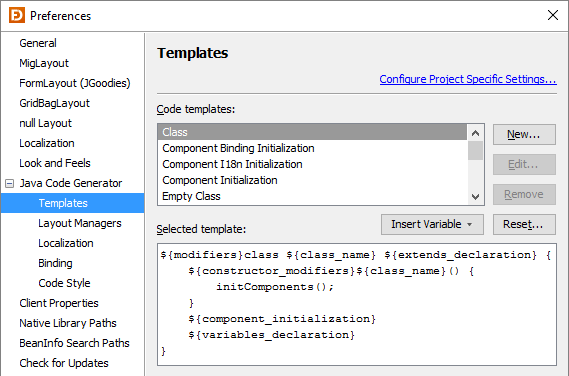
New: Create a new template for a specific superclass.
Edit: Edit the superclass of the selected user-defined template.
Remove: Remove the selected template. Only allowed for user-defined
templates.
Reset: Reset the selected predefined template to the default.
Insert Variable: Insert a variable at the current cursor location into the
selected template.

Layout Managers (Java Code Generator)
On this page, you can specify code generation options for some layout managers.

| Option | Description | Default |
|---|---|---|
| Use API constraints in generated code | If enabled, then MigLayout API is used to create constraints. Otherwise strings are used. | Off |
| Use PanelBuilder in generated code | If enabled, the PanelBuilder class of JGoodies Forms is used for FormLayout. | Off |
| Make anonymous PanelBuilder JPanel transparent | If enabled, the JPanel of the PanelBuilder is made transparent. | Off |
| Use empty GridBagConstraints constructor | If enabled, the empty GridBagConstraints constructor is used in the generated code, which is necessary for Java 1.0 and 1.1 compatibility. Since Java 1.2, GridBagConstraints has a constructor with parameters, which is used by default. | Off |
| GroupLayout Generation Style | Specifies whether class javax.swing.GroupLayout is used, which is part of Java 6 and later. Or whether org.jdesktop.layout.GroupLayout from the Open Source Swing Layout Extension library swing-layout.jar is used, which is also available for Java 1.4 and 5. | use source compatibility (see Java Code Generator preferences page) |
| TableLayout package | Package name used by the Java code generator for TableLayout. Change this only if you have a copy of the original TableLayout in another package. | info.clearthought.layout |
Localization (Java Code Generator)
On this page, you can specify code generation options for localization.

| Option | Description | Default |
|---|---|---|
| Generate initComponentsI18n() method | If enabled, the code generator puts the code to initialize the localized texts into a method initComponentsI18n(). You can invoke this method from your code to switch the locale of a form at runtime. You can set this options also per form in the "(form)" properties. | Off |
| 'getBundle' template | Template used by code generator for getting a resource bundle. | ResourceBundle.getBundle (${bundleName}) |
| 'getString' template | Template used by code generator for getting a string from a resource bundle. | ${bundle}.getString(${key}) |
Binding (Java Code Generator)
On this page, you can specify code generation options for Beans Binding (JSR 295).

| Option | Description | Default |
|---|---|---|
| Generate initComponentBindings() method | If enabled, the code generator puts the code to create bindings into a method initComponentBindings(). You can set this options also per form in the "(form)" properties. | Off |
Code Style (Java Code Generator)
Stand-alone: On this page, you can specify code style options, which are used for code generation.
IDE plug-ins: This page is not available in IDE plug-ins because IDEs already have preferences that control code style. JFormDesigner uses the code style settings from IDE projects or preferences.

| Option | Description | Default |
|---|---|---|
| Indent size | The number of spaces used for one indentation level. | 4 |
| Tab size | The number of spaces that represents one tabulation. | 4 |
| Use tab character | Specifies whether the tab character (\t) is used for indentation or only space characters. | On |
| Line separator | The line separator used for newly created .java and .properties files. | Platform default |
| Encoding | The character encoding used for reading and writing Java files. | Platform default |
Client Properties
On this page, you can can define client properties, which can be set in the Properties view.

If the client properties list is focused, you can use the Insert key to add a client property or the Delete key to delete selected client properties.

| Option | Description |
|---|---|
| Key | The key that identifies the client property. |
| Component class(es) | The component class(es) to which the client property belongs. E.g. if set to javax.swing.JButton, then the client property is shown in the Properties view for buttons and for subclasses of JButton. To specify multiple classes, separate them with commas. If not specified, the client property is shown for all JComponent components. |
| Value type | The type of the client property value. You can select one of the common types (String, Boolean, Integer, etc) from the combo box or enter the class name of a custom type. |
| Predefined values | If the value type is java.lang.String, then you can specify predefined values for the client property. When editing the client property in the Properties view, a combo box that contains these values is shown. The combo box is editable by default. Select the "Allow only predefined values" check box to make the combo box not-editable. |
| Property editor class | Optional class name of a property editor that should be used when editing the client property in the Properties view. |
Native Library Paths
On this page, you can specify the locations of custom JavaBeans that use native libraries and you can specify the folders where to search for the native libraries.
Note: When removing or changing paths, a restart of JFormDesigner (or the IDE) is probably necessary to make the changes work.

| Option | Description |
|---|---|
| Classpath for JavaBeans, which use native libraries | JAR files or folders containing .class files, which are using native libraries. They must be specified here to ensure that the native libraries are loaded from a special class loader only once. |
| Native Library Path | Folders used to search for native libraries. |
BeanInfo Search Paths
On this page, you can specify package names that will be used for finding BeanInfo classes and property editors.

| Option | Description |
|---|---|
| BeanInfo search path | Package names that will be used for finding BeanInfo classes. Only necessary if the BeanInfo class is not in the same package as the component class to which it belongs. See java.beans.Introspector and Introspector.setBeanInfoSearchPath() for details. |
| Property editor search path | Package names that will be used for finding property editors. Only necessary if the property editor is not in the same package as the property type to which it belongs. See java.beans.PropertyEditorManager and PropertyEditorManager.setEditorSearchPath() for details. |
Check for Updates
This page allows you to specify whether JFormDesigner should check for updates and new versions. Click the "Check Now" button to check for updates immediately.
